Member guide

How It Works

A step-by-step guide to every menu on Balai Samaj Matrimonial, with screenshots. Everything on the portal is free.

Getting started

1 Create your free profile

Where: Top menu → Register

  1. Click Register at the top of any page. Registration is completely free.
  2. Step 1: choose who the profile is for, then enter name, email, mobile number, password and date of birth.
  3. Step 2: add where you live, your education, career and a few lines about yourself.
  4. Step 3: describe the partner you are looking for. Optional fields can be filled later.
  5. Our team reviews every new profile. Once approved, your profile shows in searches and matches.
Open this page
Screenshot: Create your free profile

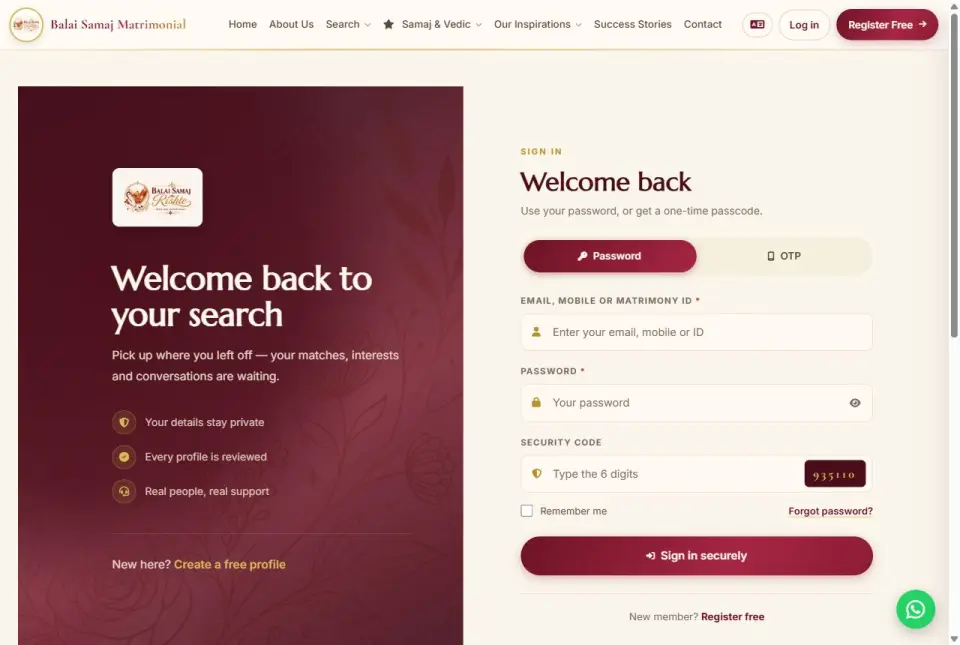
2 Log in

Where: Top menu → Login

  1. Enter your email, mobile number or Matrimony ID and your password.
  2. Type the 6-digit security code shown in the box and click Sign in.
  3. Enter the one-time passcode (OTP) sent to your email to finish signing in.
  4. No password handy? Choose the OTP tab and sign in with a one-time passcode instead.
  5. Forgot your password? Use the forgot password link on the login page to set a new one.
Open this page
Screenshot: Log in

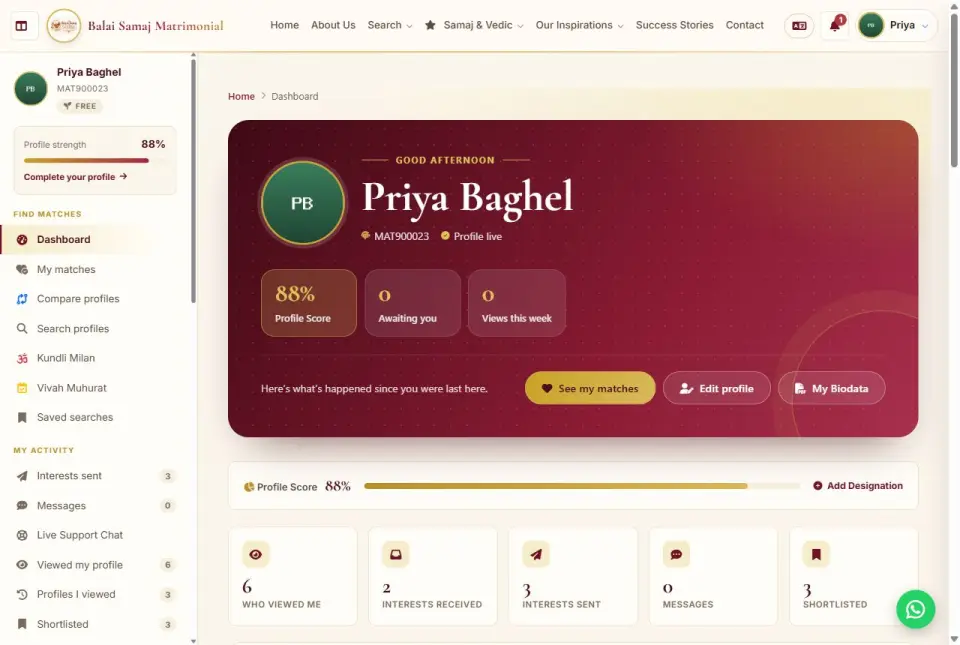
3 Your dashboard

Where: Sidebar → Dashboard

  1. After logging in you land on the dashboard: your profile score, interests waiting for you and profile views.
  2. Use the See my matches, Edit profile and My Biodata buttons to jump straight there.
  3. Every menu is in the left sidebar. On a phone, open it with the menu button at the top left.
Open this page
Screenshot: Your dashboard

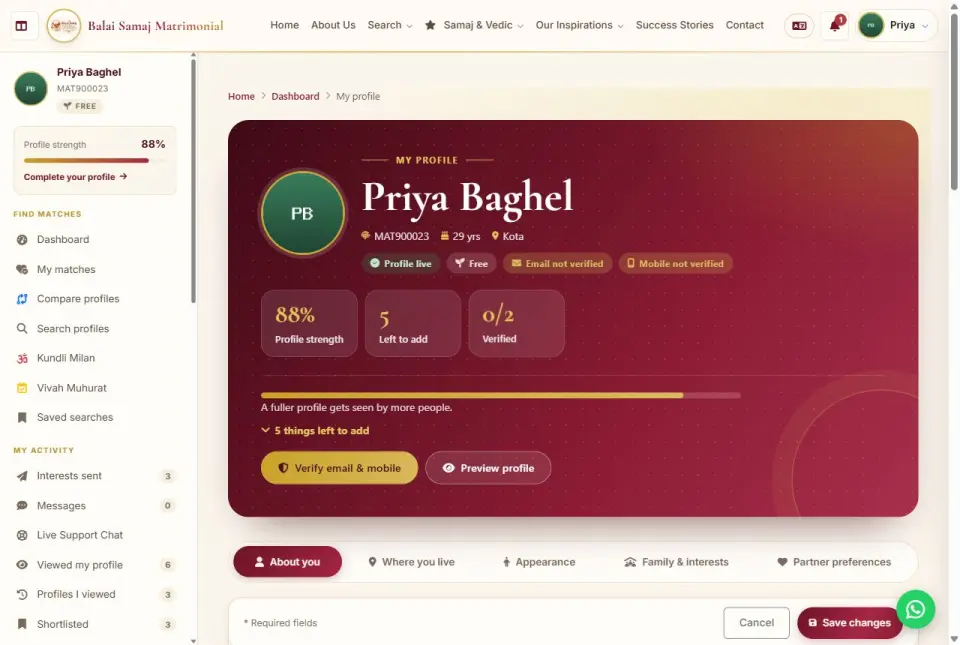
4 Complete and edit your profile

Where: Sidebar → My profile → View / edit profile

  1. Open View / edit profile to see every section of your profile.
  2. Click edit on a section, change the details and save.
  3. The Profile strength bar in the sidebar shows how complete your profile is. A fuller profile gets seen by more people.
Open this page
Screenshot: Complete and edit your profile

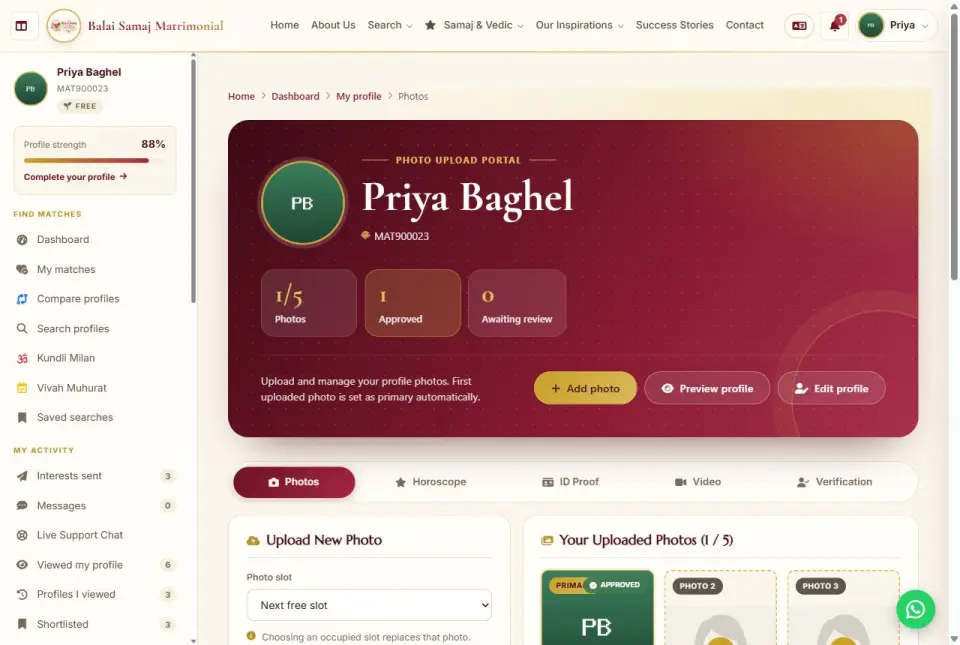
5 Upload your photos

Where: Sidebar → My profile → Upload photo

  1. Click a photo slot and choose a JPG, PNG or GIF photo up to 5MB.
  2. Crop the photo: drag to reposition, scroll or pinch to zoom, then save.
  3. Use a clear photo of yourself only: no group photos, logos or text on the photo.
  4. Each photo is checked by our team before others can see it.
  5. Horoscope, ID proof and an introduction video are uploaded the same way from the menus just below.
Open this page
Screenshot: Upload your photos

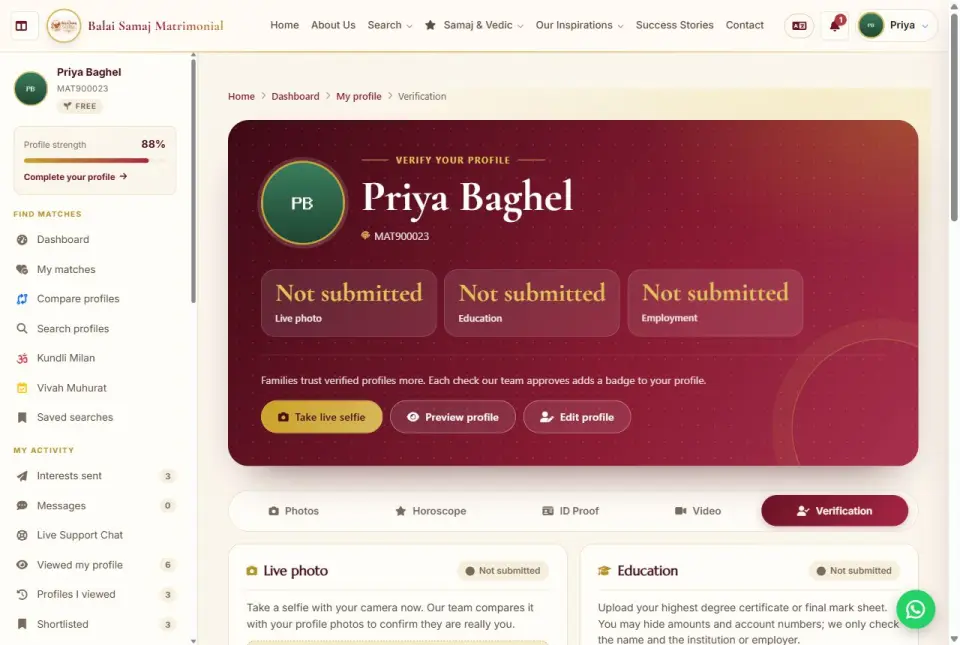
6 Verify your profile

Where: Sidebar → My profile → Verify profile

  1. Upload a profile photo first.
  2. Take a selfie with your camera. Our team compares it with your profile photos.
  3. You can also send education or work documents. Only the verification team sees them.
  4. Once approved, a verified badge shows on your profile.
Open this page
Screenshot: Verify your profile

Finding matches

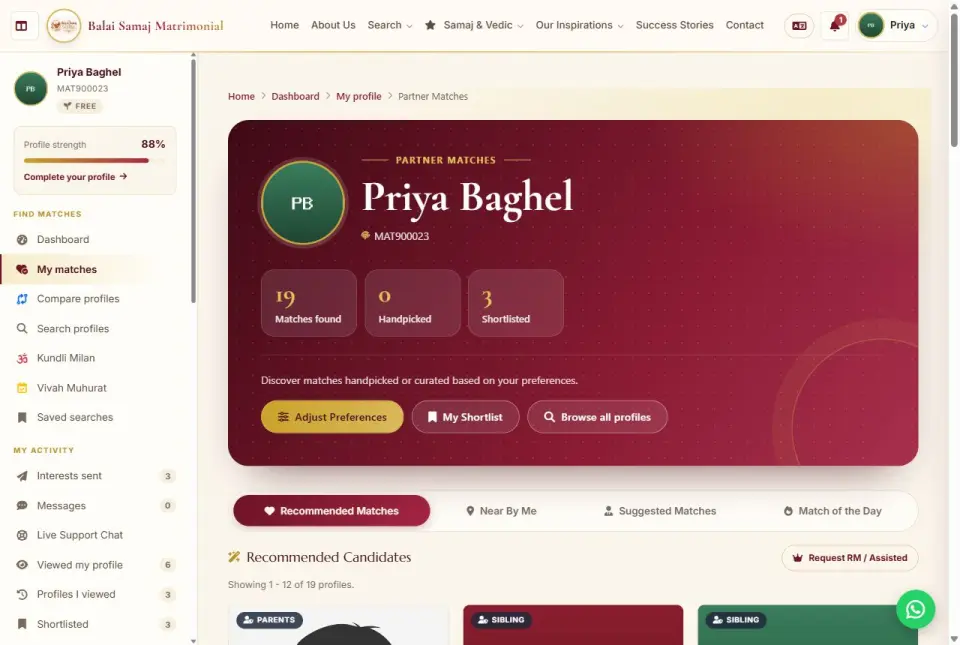
7 My matches

Where: Sidebar → Find matches → My matches

  1. See profiles that fit the partner preferences you gave.
  2. Click Adjust Preferences to change age, community, city and more.
  3. Click a profile card to open the full profile.
Open this page
Screenshot: My matches

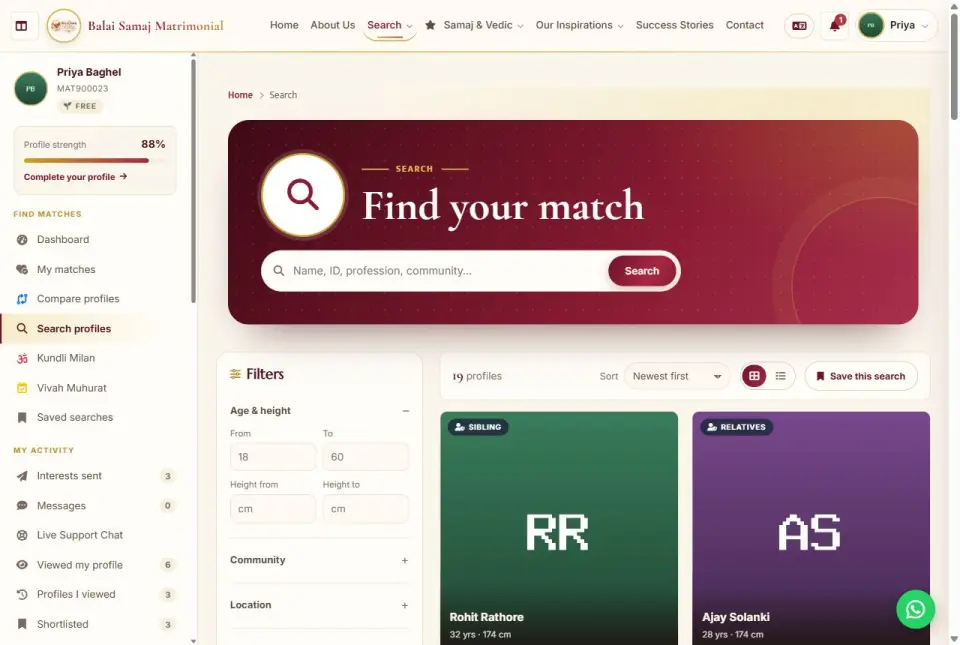
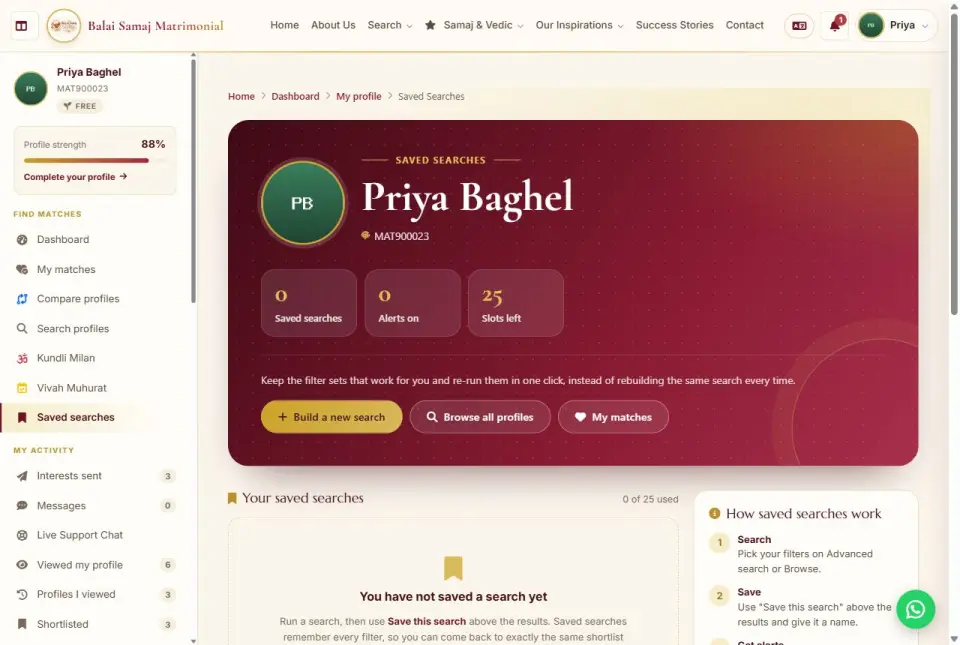
9 Saved searches and alerts

Where: Sidebar → Saved searches

  1. Every search you saved is listed here. Run any of them again with one click.
  2. With alerts on, we tell you once a day by email and notification when new profiles match.
Open this page
Screenshot: Saved searches and alerts

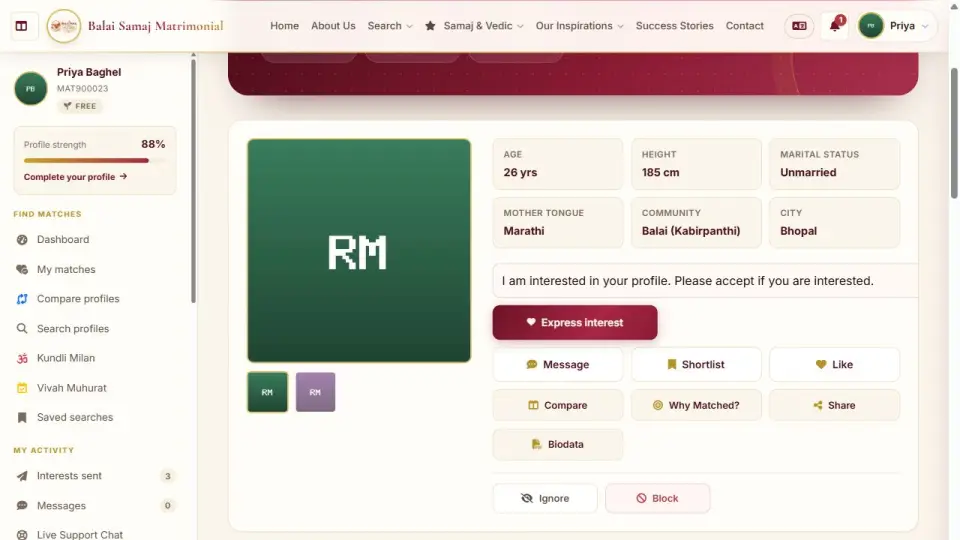
10 View a profile and connect

Where: Click any profile card

  1. The profile shows age, height, community, city, family, education and photos.
  2. Click Express interest to tell the member you like their profile. You can change the short message first.
  3. Message starts a chat, Shortlist saves the profile, Like shows your appreciation.
  4. Compare puts profiles side by side, Why Matched? shows what you have in common, Biodata opens their biodata.
  5. Contact details show as per the member's privacy setting, usually after they accept your interest.
  6. Ignore hides the profile from you, Block stops all contact, and Report this profile tells our team.
Screenshot: View a profile and connect

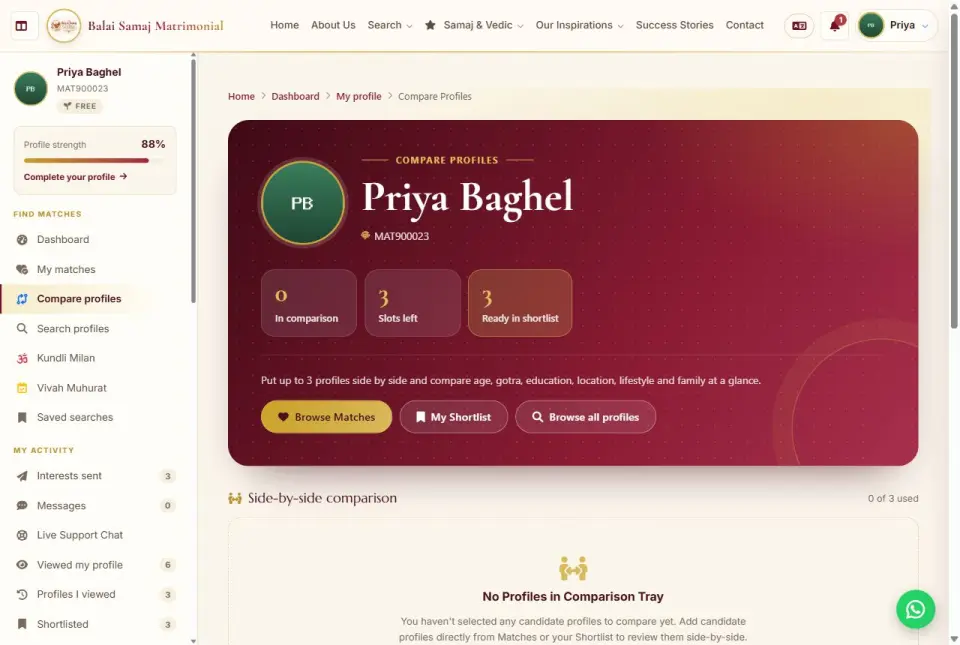
11 Compare profiles

Where: Sidebar → Compare profiles

  1. Click Compare on the profiles you like.
  2. Open Compare profiles to see them side by side: age, height, education, city and more.
Open this page
Screenshot: Compare profiles

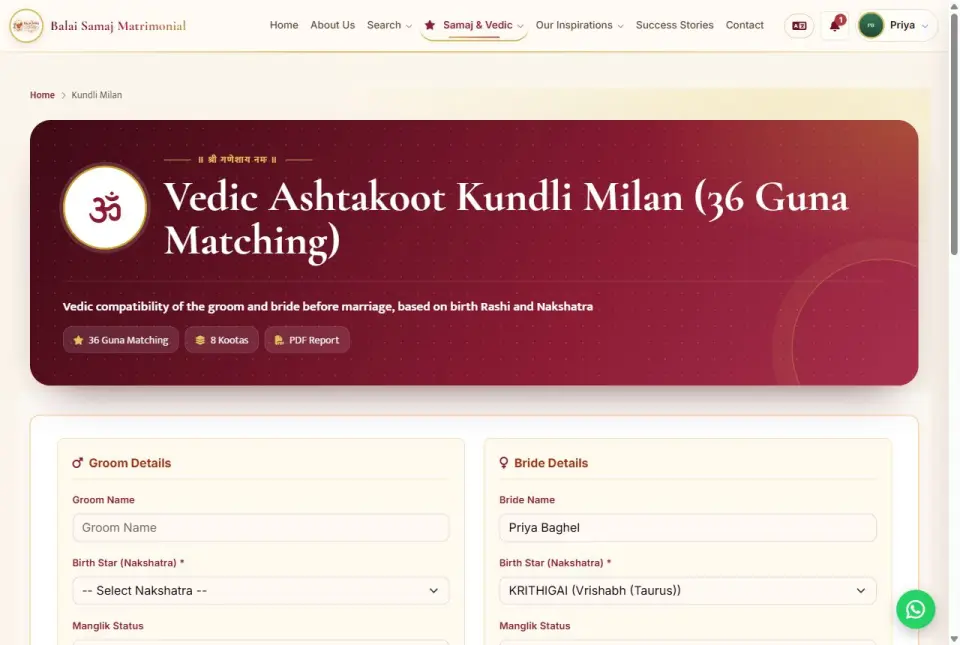
12 Kundli Milan (36 Gunas)

Where: Sidebar → Kundli Milan

  1. Enter the name and the date, time and place of birth of the bride and the groom.
  2. Get the free score out of 36 gunas. 18 or more gunas is considered auspicious.
  3. Download the result as a PDF. Vivah Muhurat, just below in the sidebar, shows auspicious wedding dates.
Open this page
Screenshot: Kundli Milan (36 Gunas)

Interests, messages and activity

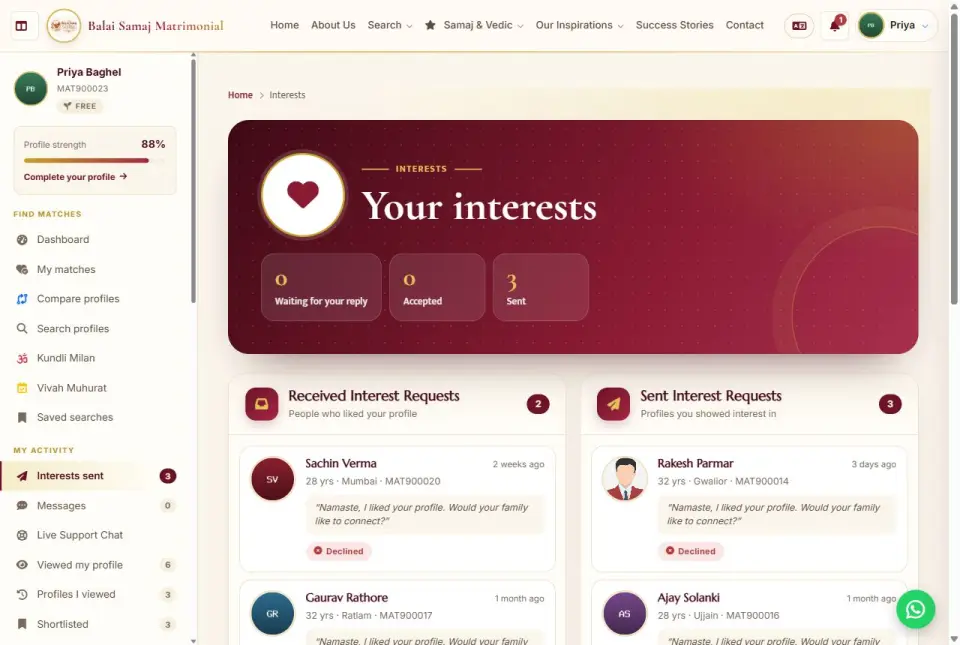
13 Interests

Where: Sidebar → My activity → Interests sent

  1. Received Interest Requests: people who liked your profile. Click Accept or Decline.
  2. Sent Interest Requests: the profiles you showed interest in, with their reply.
  3. Once an interest is accepted, you can message each other.
Open this page
Screenshot: Interests

14 Messages

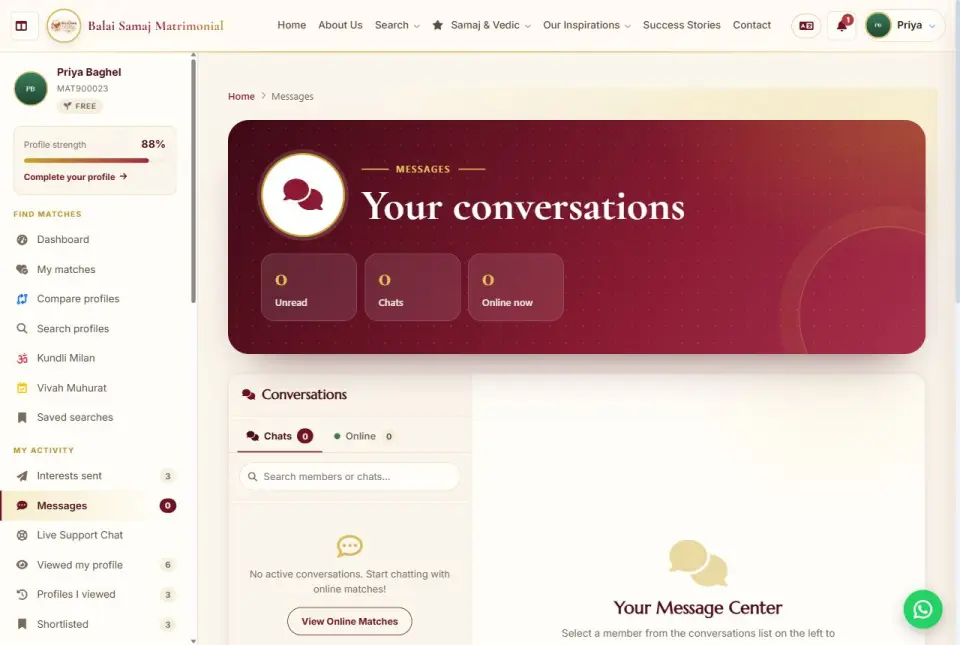
Where: Sidebar → My activity → Messages

  1. Pick a conversation from the list to open the chat.
  2. Type your message and send it. New replies appear on their own.
  3. Past voice and video calls are listed under Call History.
  4. Never send money or bank details to anyone you meet here. Report anything suspicious.
Open this page
Screenshot: Messages

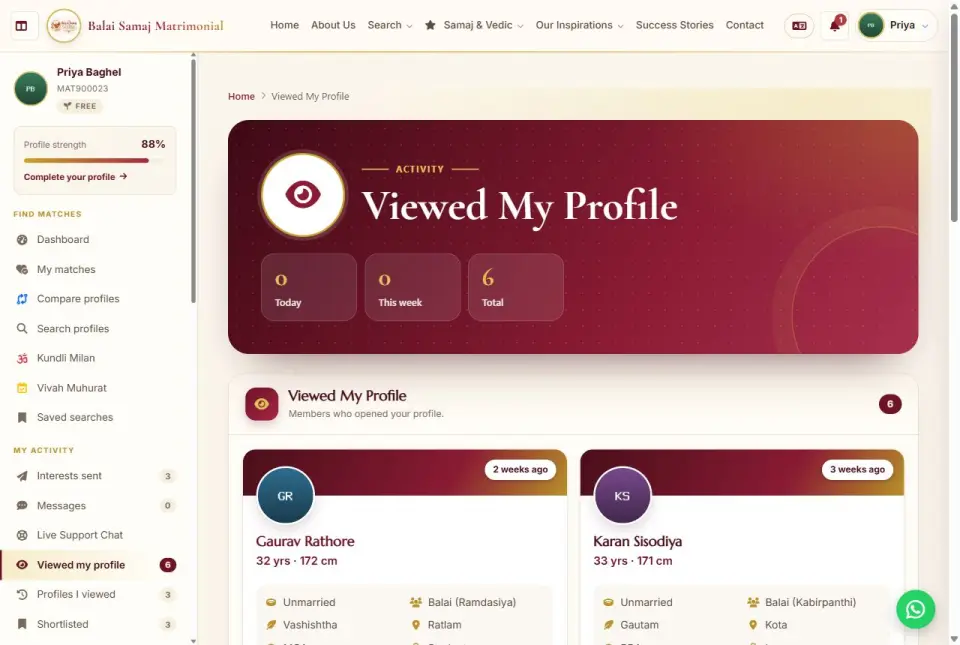
15 Who viewed you, shortlist and history

Where: Sidebar → My activity

  1. Viewed my profile: members who opened your profile.
  2. Profiles I viewed: profiles you opened recently.
  3. Shortlisted: profiles you saved with the Shortlist button.
  4. Viewed my contact and Contacts I viewed: who saw whose contact details.
  5. Blocked: members you blocked. You can unblock them from here.
Open this page
Screenshot: Who viewed you, shortlist and history

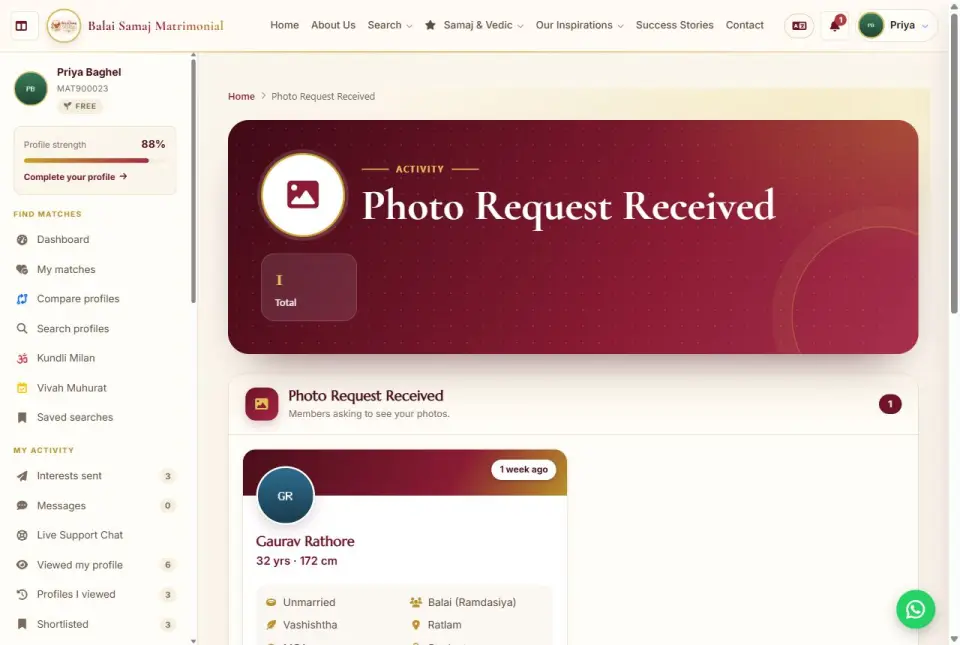
16 Photo requests

Where: Sidebar → Photo requests in / Photo requests out

  1. If a member has hidden their photos, click Send request on their profile.
  2. Photo requests in: allow or decline members who asked to see your photos.
  3. Photo requests out: see which of your requests were allowed.
Open this page
Screenshot: Photo requests

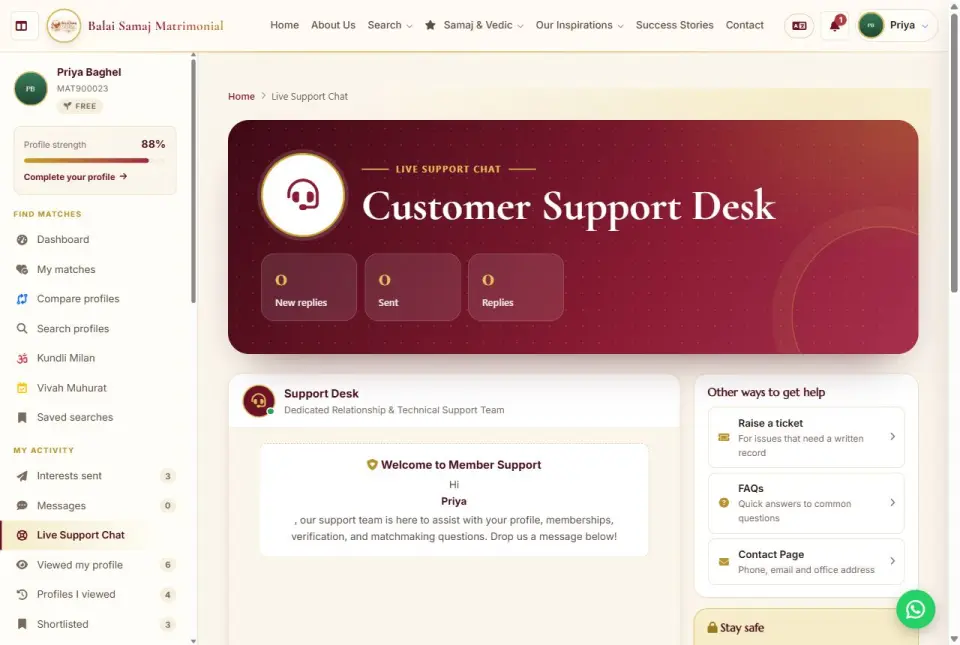
17 Live support chat

Where: Sidebar → Live Support Chat

  1. Type your question and our support team replies in the same window.
  2. The Help Center and Contact Us pages in the footer can help too.
Open this page
Screenshot: Live support chat

Biodata, family and samaj

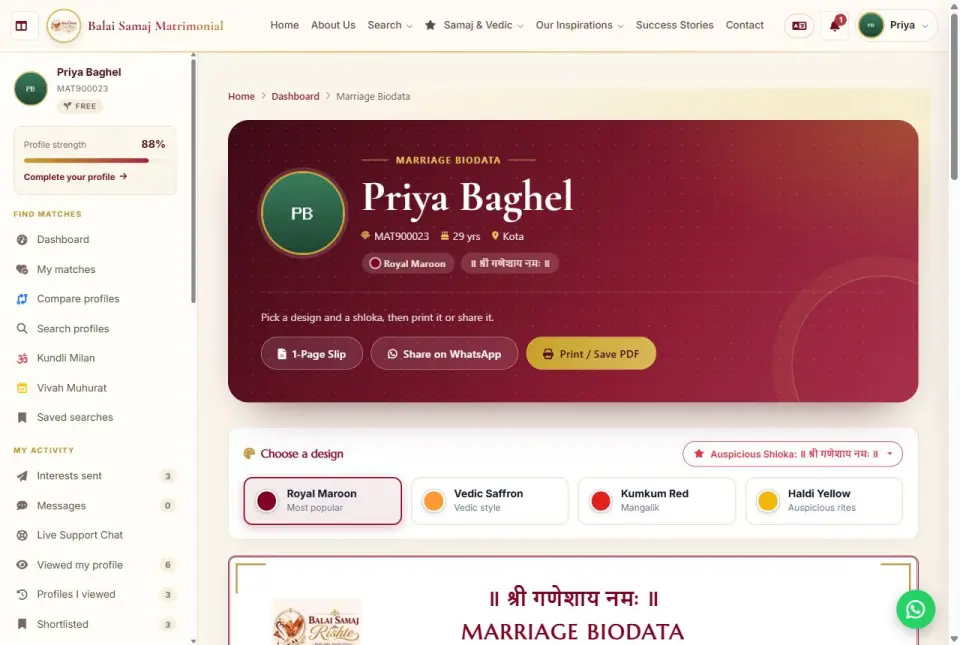
18 Marriage biodata

Where: Sidebar → My profile → Marriage Biodata

  1. Your biodata is made from your profile details.
  2. Click Print or Download Biodata to print it or save it as a PDF.
  3. Update your profile and the biodata updates too.
Open this page
Screenshot: Marriage biodata

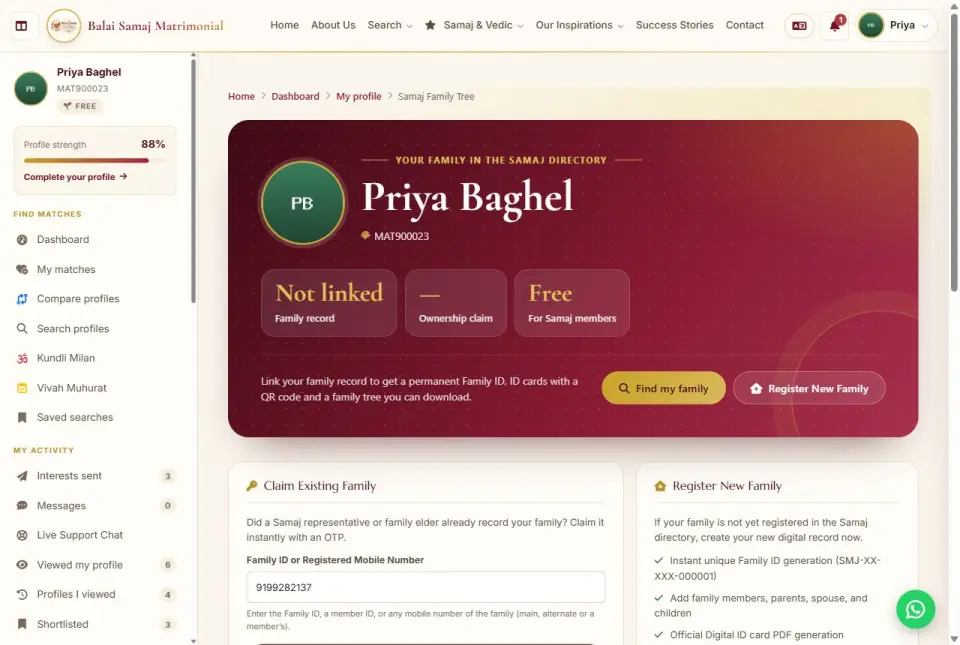
19 Samaj family tree

Where: Sidebar → Samaj & Community → Samaj Family Tree

  1. Create your family's record in the samaj directory.
  2. Add family members with their relation. The family tree is drawn for you.
  3. Profiles linked to a samaj family show a Samaj Verified badge.
Open this page
Screenshot: Samaj family tree

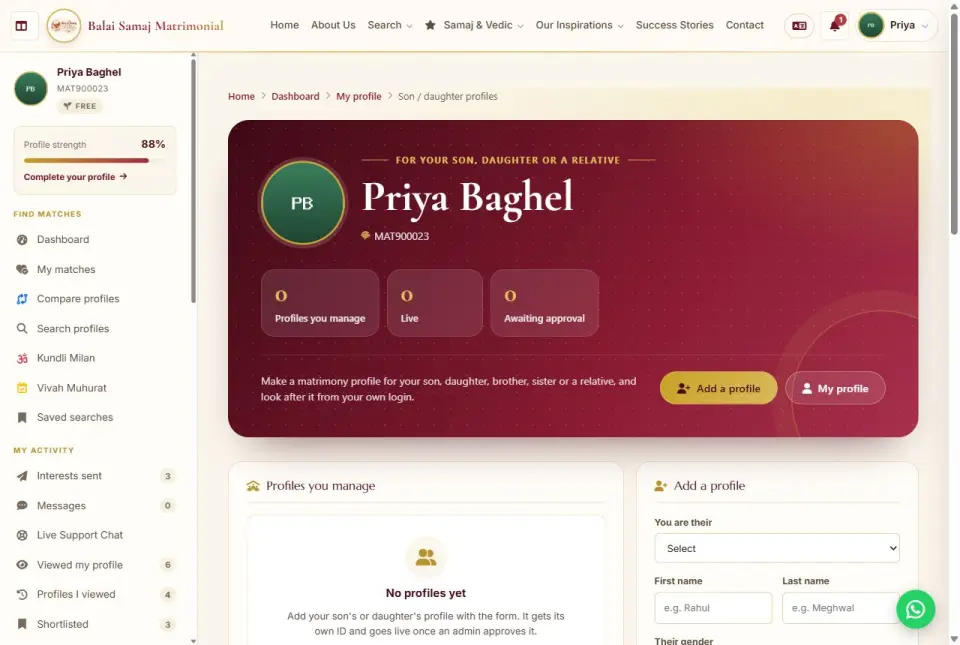
20 Son / daughter profiles

Where: Sidebar → Son / daughter profiles

  1. Parents can create a matrimony profile for their son or daughter (18 or older).
  2. Enter their details, their mobile number and a password for their account.
  3. Every profile you create is listed here so you can manage it.
Open this page
Screenshot: Son / daughter profiles

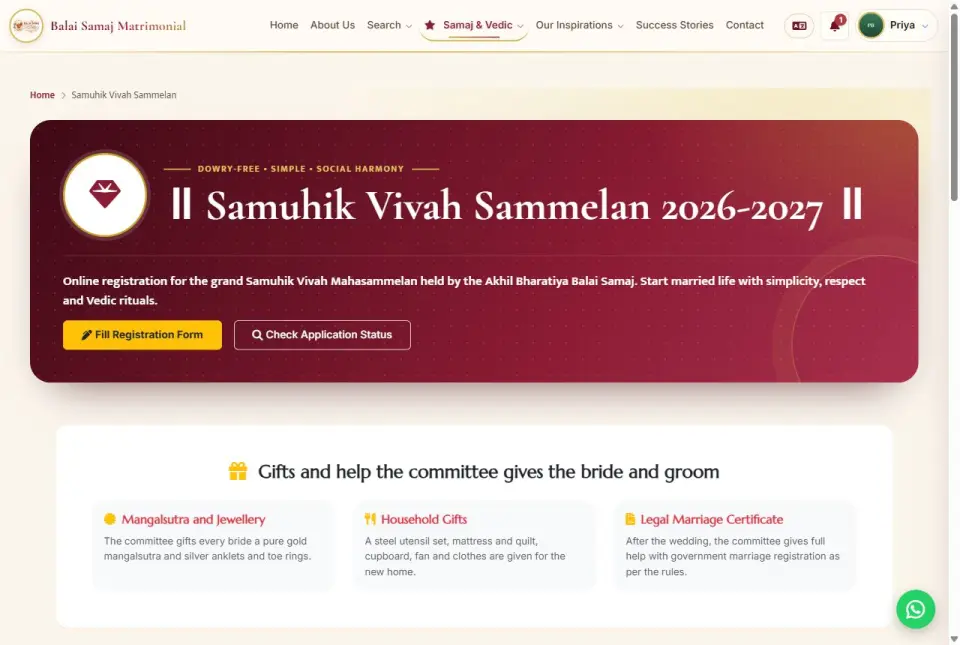
21 Samuhik Vivah

Where: Sidebar → Samuhik Vivah

  1. Read about the upcoming dowry-free mass wedding.
  2. Click Fill Registration Form and enter the bride and groom details.
  3. Use Check Application Status to follow your application.
Open this page
Screenshot: Samuhik Vivah

Settings

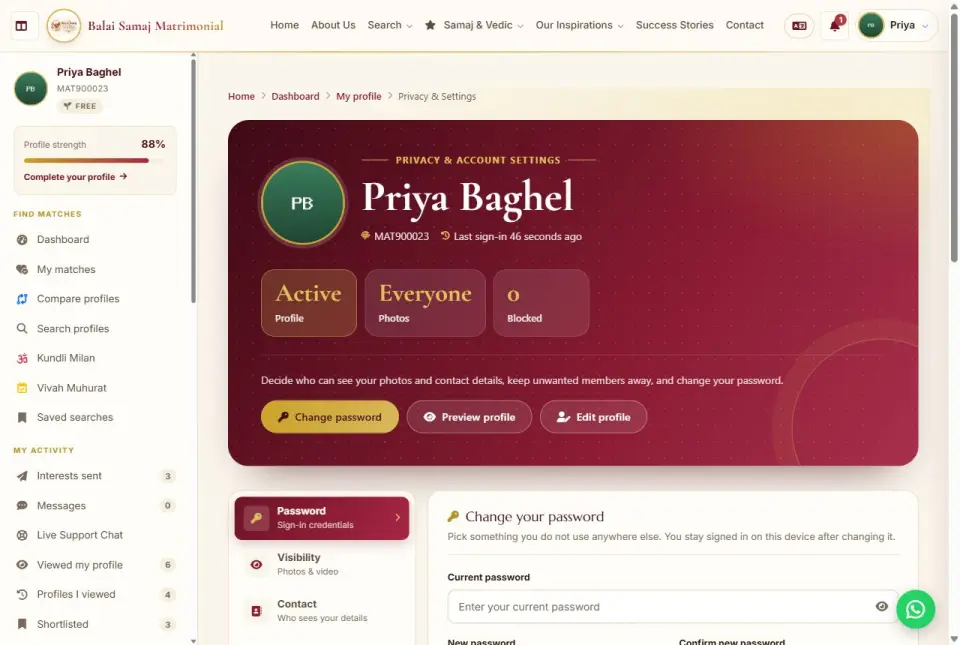
22 Privacy settings

Where: Sidebar → Settings → Privacy

  1. Choose who can see your photos, introduction video and contact details.
  2. Hide your profile from search and matches for a while without deleting anything.
  3. Change your password or download a copy of everything we store about you.
Open this page
Screenshot: Privacy settings

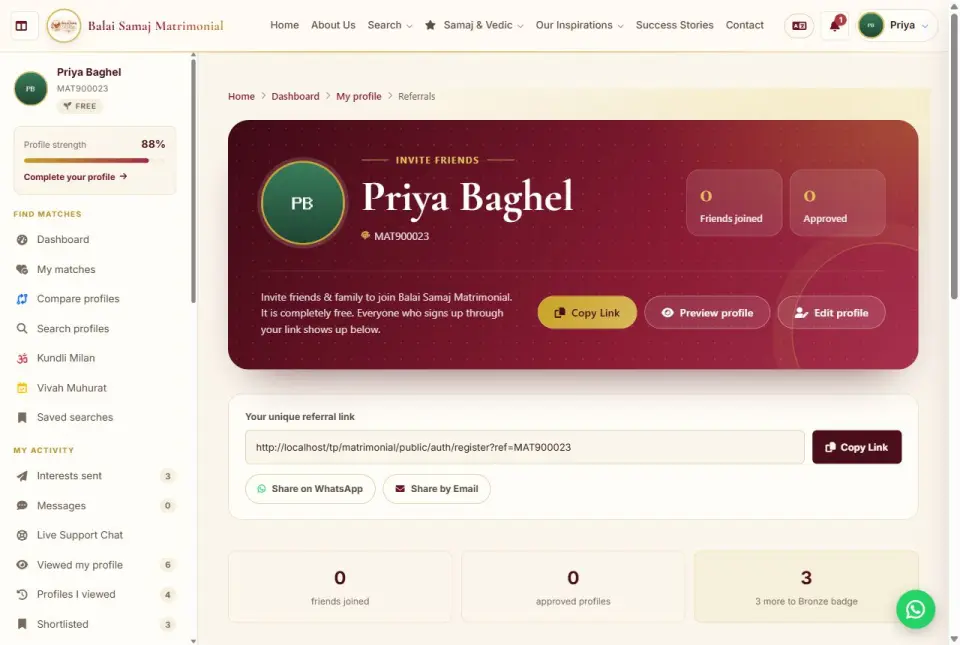
23 Invite friends

Where: Sidebar → Settings → Invite friends

  1. Copy your invite link, or share it on WhatsApp or by email.
  2. When someone signs up through your link, they show in your list here.
  3. The portal is completely free. There is no fee or commission.
Open this page
Screenshot: Invite friends

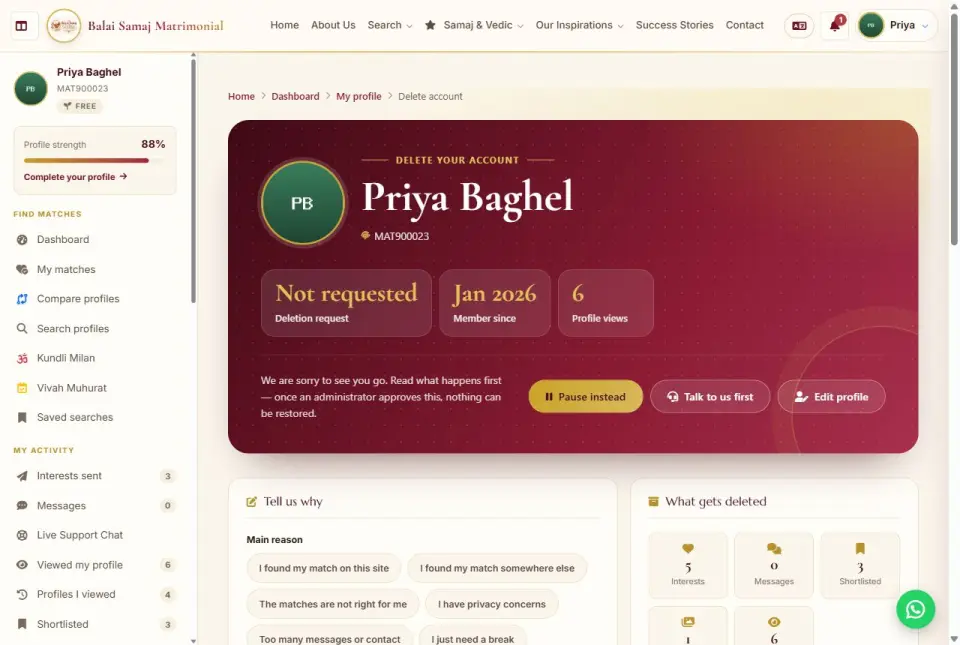
24 Delete your profile

Where: Sidebar → Settings → Delete profile

  1. Pick a reason and confirm with your password.
  2. An administrator reviews the request. Your profile stays live meanwhile.
  3. Changed your mind? Withdraw the request before it is approved.
Open this page
Screenshot: Delete your profile